Extract Tables from Any PDF to Excel

Upload a PDF and pull out every table — headers, rows, columns, merged cells — into an editable spreadsheet. Works on text-based PDFs, scanned documents, and multi-page reports.

ZIP
Email

0/10 daily document conversions

Start free instantly • All document types • No signup required

Privacy First: Your images are never stored - processed instantly and discarded

How ScanToExcel Pulls Tables Out of PDFs

What You Need

  • A PDF file containing one or more tables (text-based or scanned)
  • A modern web browser — no software to install

Upload → Analyze → Export

1

Select Your PDF File

Drag and drop your PDF or take a photo of a printed page. Choose an output format: Excel, CSV, Word, JSON, or XML.

2

AI Detects Table Structure and Values

Our AI reads your PDF and works to identify table structures, headers, and cell values — including scanned PDFs with no selectable text. The entire document is analyzed together so multi-page context is preserved.

3

Export to Your Preferred Format

Get your extracted tables instantly as editable spreadsheets. Each PDF produces its own file with structure preserved. Batch uploads supported.

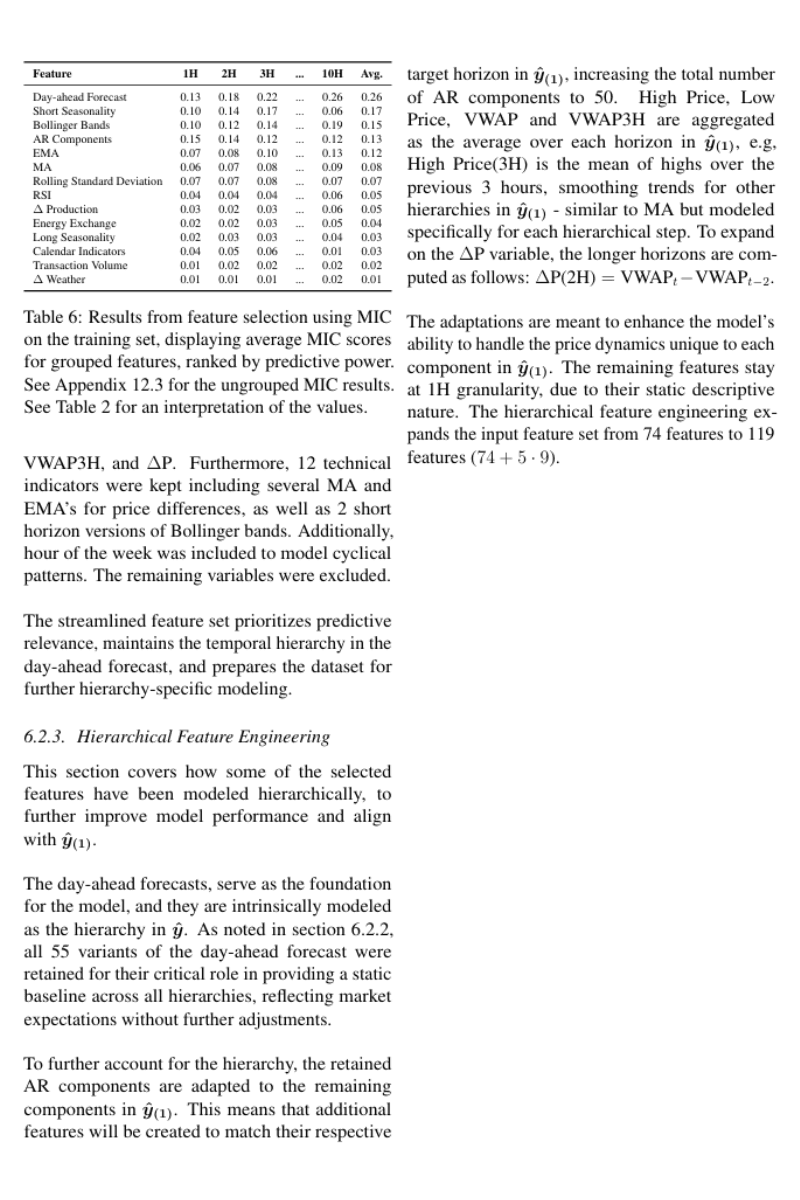
Financial Report Table

PDF with tables

PDF document containing a financial data table with rows, columns, and headers

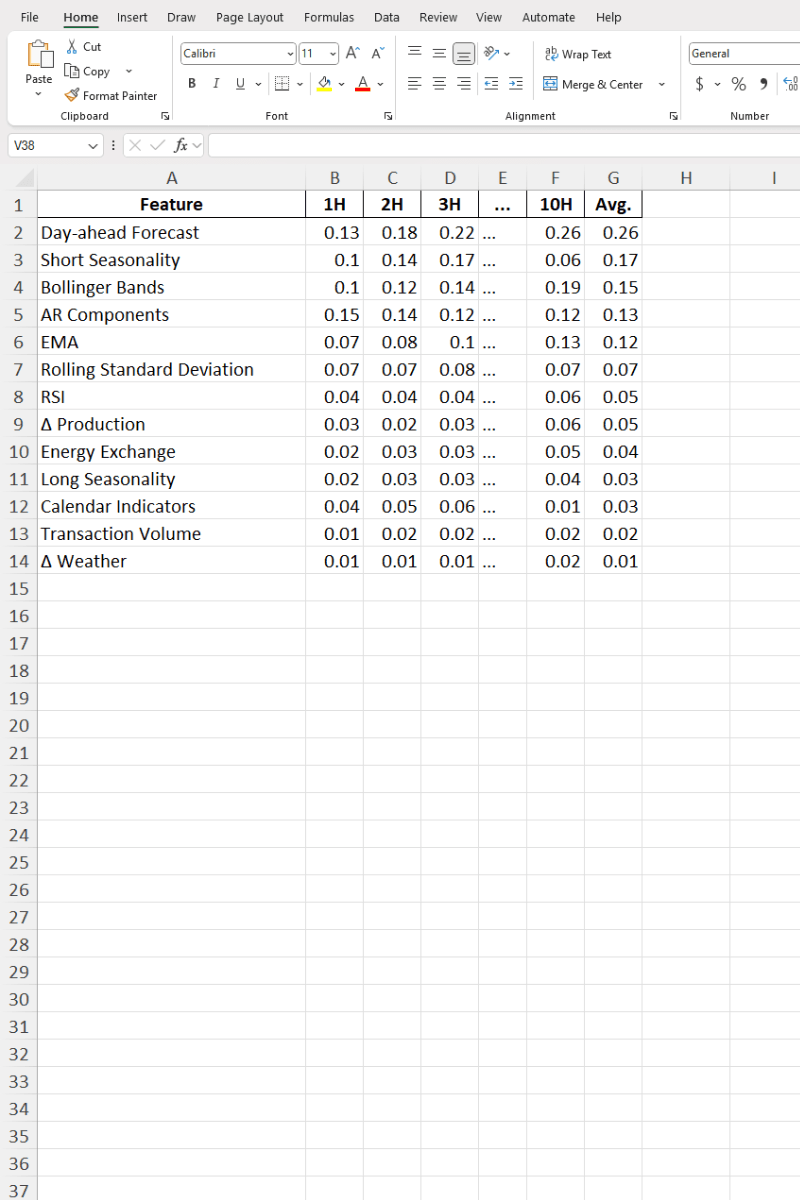
Extracted Excel data

Extracted PDF table data in Excel with headers, rows, and values preserved

Any Table, Any PDF, Any Layout

Every PDF stores tables differently. ScanToExcel's AI analyzes each format — whether it's a text layer you can't copy or a scanned image with no selectable text.

📊

Financial Reports & Filings

Quarterly earnings, SEC filings, annual reports — extract revenue tables, balance sheets, and income statements into editable spreadsheets.

🔬

Research & Statistical Data

Published studies, clinical trial results, census data — pull statistical tables from journals and papers without manual transcription.

📋

Product Catalogs & Price Lists

Supplier catalogs, vendor pricing PDFs, product specification sheets — turn them into sortable, filterable spreadsheets.

⚖️

Legal & Regulatory Documents

Contract exhibits, compliance schedules, licensing tables — convert structured legal data into workable formats.

🖨️

Scanned Paper Documents

Printed reports, legacy documents scanned to PDF — no text layer required. Our OCR reads the image and reconstructs the table.

📑

Multi-Page Spanning Tables

Tables that break across pages — the AI analyzes the full PDF together so it can interpret data that spans multiple pages.

Precision Extraction for Complex Layouts

AI-powered table structure recognition
Handles complex layouts including merged cells
Full-document analysis for multi-page PDFs
Works on borderless, gridded, and mixed tables
Export to Excel, CSV, Word, JSON, or XML
Aims to preserve cell values, headers, and structure
Upload multiple PDFs per session
Instant download or delivery by email

Inside the Extraction: What the AI Finds

The AI reads each PDF and works to identify these table elements.

Extracted Table Elements

  • Column headers and sub-headers
  • Row labels and category groupings
  • Numeric values with decimal precision
  • Currency symbols and units
  • Dates in their original format
  • Merged cells spanning rows or columns
  • Text-based and scanned PDFs alike

Why PDF Tables Are Hard to Extract

PDFs store text as individually positioned characters — there are no cells, no columns, no rows in the file format. When you copy-paste a table from a PDF, the column alignment breaks because the structure only exists visually.

Scanned PDFs are even harder: they contain only a flat image with no text layer at all. Traditional copy-paste returns nothing.

ScanToExcel's AI reads the visual layout of your PDF and maps positioned characters back into structured rows and columns — giving you an editable spreadsheet instead of scrambled text.

Get Better Results From Your PDFs

Get the most accurate results from your PDF table conversions.

  1. 1

    Use the original PDF when possible

    Text-based PDFs (where you can select text) extract faster and more accurately than scanned images.

  2. 2

    Avoid low-resolution scans

    If scanning a printed document, use at least 200 DPI. Higher resolution means better OCR accuracy for small text and numbers.

  3. 3

    Keep pages straight

    Rotated or skewed scans reduce accuracy. Align pages before scanning or take photos head-on.

  4. 4

    One table topic per upload

    If a PDF contains unrelated tables, the AI handles them separately. But grouping similar documents in a batch improves your workflow.

  5. 5

    Check merged cells in output

    Complex merges (spanning 3+ rows and columns) are the hardest to reconstruct. Verify these cells in your downloaded spreadsheet.

  6. 6

    Use CSV for database imports

    If your goal is to load data into a database or BI tool, choose CSV or JSON output instead of Excel for cleaner integration.

Choose Your Plan

All plans include all document types, input formats & export formats.

Current Plan
🆓

Free

$0

Perfect for occasional use. No account needed.

  • 10 conversions per day
  • Up to 3 files per batch
  • Receipts, invoices, bank & credit card statements, paystubs, table images
  • Scanned PDFs, text PDFs, multi-page PDFs, JPG, PNG, HEIC, WebP & more
  • Export to Excel, CSV, Word, PDF, XML, JSON
  • Privacy first: files & output are never stored

Free+

$0

Double your daily limit with a free account.

  • 20 conversions per day
  • Up to 10 files per batch
  • ZIP download for batch files
  • Email delivery of results
  • Everything in Free
Most Popular
👑

Premium

$4.99/mo

For power users who need maximum conversions.

  • Unlimited conversions
  • Up to 50 files per batch
  • Enhanced AI model for better accuracy
  • Parallel processing — 3x faster batches
  • Priority email support
  • Billed monthly, cancel anytime
  • Everything in Free+

PDF Table Extraction FAQ

Can ScanToExcel extract tables from scanned PDFs?
Yes. The AI-powered OCR works with both text-based and scanned PDFs. When a PDF has no selectable text — like a printed report that was scanned — the AI reads the image pixels and reconstructs the table layout. Text-based PDFs generally produce higher accuracy than low-resolution scans.
How does ScanToExcel handle multi-page PDFs?
Your entire PDF is uploaded and analyzed as a single document, so the AI has full context across all pages. Results are returned as one structured spreadsheet per file. For very long documents, accuracy is best when tables have consistent formatting throughout.
Why can't I just copy-paste tables from a PDF?
PDFs store text as positioned characters, not structured cells. Copy-pasting scrambles columns because there is no underlying grid in the file format. Scanned PDFs are worse — they have no text layer at all, so there is nothing to select. ScanToExcel's AI reads the visual layout and maps characters back into rows and columns.
Is the PDF I upload stored anywhere?
No. Your PDF is processed entirely in memory — it is never written to disk, logged, or retained after your download is ready. This is especially relevant for PDFs containing financial reports, contracts, or proprietary pricing data. No account creation is needed.
What output formats can I choose?
You can export to Excel (XLS), CSV, PDF, Word (DOC), JSON, or XML. CSV and JSON are cleanest for database and BI tool imports. Excel is best when you want to immediately filter, sort, or chart the data. Word works for embedding tables into reports.
Which PDF tables produce the best results?
Tables with clear gridlines and consistent headers — financial reports, pricing schedules, regulatory tables — tend to yield the highest accuracy. The AI also handles borderless and irregular layouts, though results may vary. Very small text, heavily rotated pages, or decorative layouts are more challenging.

Ready to Free Your PDF Data?

Upload a PDF and get structured, editable table data in seconds — no signup, no software, no data stored.

Extract PDF Tables Now
PDF Table to Excel Converter | Free AI-Powered Extractor | ScanToExcel